A LITTLE GUIDANCE GOES A LONG WAY
Make yourself
at home.
The essentials, without the instruction manual.
A few simple ways to get more from WordEase.
For detailed, step-by-step help, open Help & Support in the app.
01 / GETTING STARTED
A keyboard.
With a little more to give.
Once WordEase is installed, open the app and follow its setup steps to enable it in Android and select it as your keyboard. It will then appear in compatible text fields when you start typing.
- Choose your appearance. Open Settings → Appearance for Light, Dark or High Visibility.
- Find a comfortable size. Adjust the keyboard-height control in Keyboard settings.
- Sign in for AI tools. Check Settings → Account and make sure you have an internet connection. Cloud AI requires introductory Pro access or WordEase Pro; the Free keyboard has no cloud AI.
02 / AI WRITING
Your thought.
The right words.
Type your draft, then use the mode selector in the AI bar to choose the kind of help you want.
- Grammar onlyCheck the grammar in your draft.
- Full rewriteTry a fresh way to express it.
- Tone modesAdjust how your message comes across.
- Ask AIEnter a prompt to get help with an idea or question.
Tap Apply and review the result before sending. In writing modes, the curved Revert arrow restores the pre-Apply text when a restore point is available.

03 / TRANSLATION & REPLIES
Read it in yours.
Reply in theirs.
Start in Settings → Translation. Choose My Language for reading and writing, and Translate To for your outgoing replies.
- Open Translation. In the keyboard’s AI bar, cycle the mode name to your language pair, such as EN → ES.
- Copy their message. Use the host app’s Copy action. Return to its editable composer with WordEase visible. In Translation mode, a newly copied text message is translated into My Language automatically.
- Write underneath. Keep the translated incoming text unchanged and type your reply below it. Your reply can have multiple lines or paragraphs.
- Translate your reply. Tap Translate. Review the outgoing result, then use the host app’s Send button.
Polish your reply first.
You can use Grammar, Full Rewrite or a tone on your reply before translating it. After Apply, tap W to return to Translation when you have worked in both modes.
Need a fresh conversation?
Hold Translation’s History control. Under the temporary-state choices, select Clear Workspace and confirm. To undo an accidental clear, hold History again and choose Revert cleared workspace.
Editors differ between apps. Keep the incoming text intact, and use the normal composer workflow if a host app’s expanded editor changes how your text is handled.
04 / THE W SHORTCUT
A small shortcut.
A smoother return.
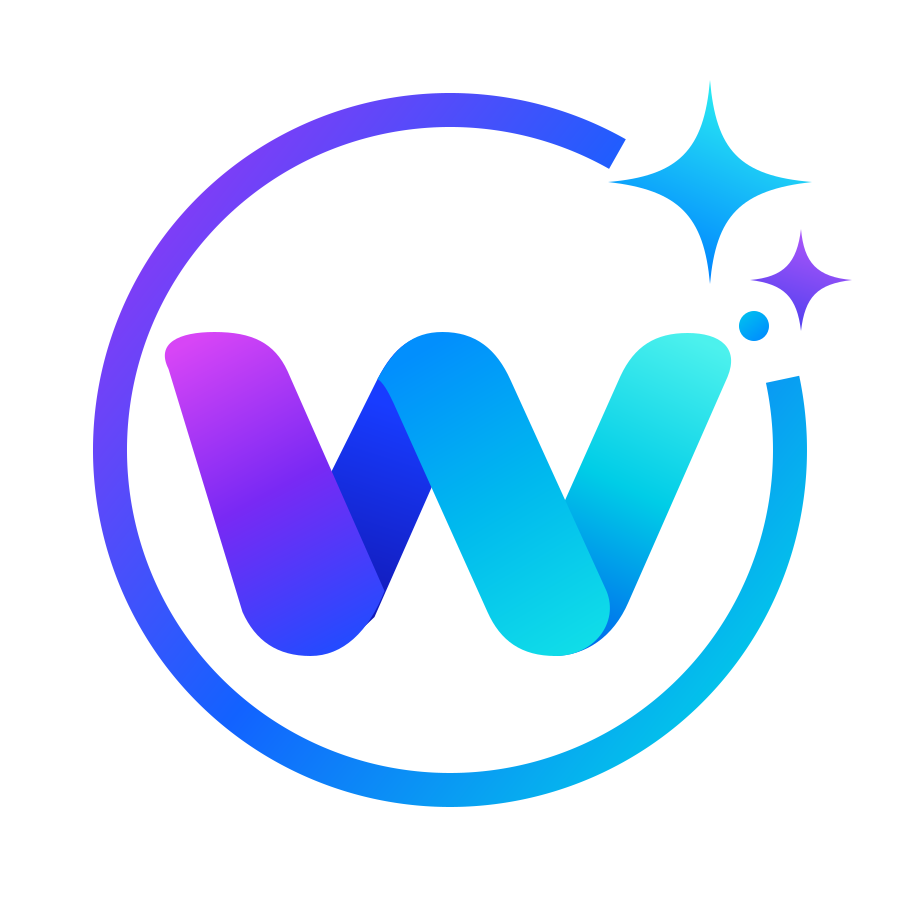
The W at the left of the AI bar returns to the previous mode you actually worked in. Tap it again to move back.
For example: write a reply in Translation, improve it with Full Rewrite, tap Apply, then tap W to return to Translation.
05 / MAKE IT YOURS
Get comfortable.
Choose Light, Dark or High Visibility in Appearance settings. Adjust the keyboard size and independently turn the AI bar and Suggestions row on or off.
Your useful little shortcuts.
Hold the emoji/comma key for recent emoji choices. Slide to one and release to insert it. Choose the smiley-grid icon for the full emoji browser.
Use Clipboard for copied text. For images, copy the image itself, not a link, and use the image Paste row in a compatible composer.
Using your screenshots.
Open Settings → Clipboard → Automatic screenshot paste. Choose Screenshots folder, select the folder where your device saves screenshots, and allow Android’s requested folder access.
Take a new screenshot after setup. Existing files are not offered automatically. Some devices use DCIM → Screenshots; others use Pictures or another location. If the image is still saving, return to the composer after it finishes.
A FEW THINGS WORTH KNOWING
Good questions.
Can I download WordEase now?
Public Google Play availability has not been announced. This site previews WordEase; a download link will be added when it is available.
Is WordEase for Android or iPhone?
WordEase is an Android keyboard. There is no iPhone version being offered here.
Do the AI tools need an internet connection?
Yes. Cloud AI needs an internet connection, a signed-in account and available introductory Pro or Pro access and allowance. WordEase Free keeps local keyboard features available without cloud AI. If an action is not responding, check your connection and Settings → Account.
Does Translate send my message?
No. It prepares the translated reply in your composer. Review it and use the receiving app’s own Send control.
Can I change the keyboard’s look and size?
Yes. WordEase has Light, Dark and High Visibility appearances, adjustable height, and optional AI and Suggestions bars.
Will every feature work in every app?
Android apps use different editors. Some text fields restrict AI actions, and some do not accept images from keyboards. WordEase works within the capabilities of the receiving editor.
Where can I find more help?
Open Settings → Help & Support inside WordEase for detailed guides, or email support@wordease.co.uk.
What are the WordEase plans?
WordEase Free — £0. Keep normal typing, Suggestions, personal learning, local spelling suggestions and corrections, Clipboard & Images, and themes. Free includes no cloud AI features. Local spelling does not use an AI allowance.
WordEase Pro — £4.99/month or £49.99/year. One optional paid subscription includes AI Grammar, Rewrite, tones, Rewrite Strength 1–3, Translation and Ask AI, with a generous AI usage allowance subject to fair use. Monthly and annual plans provide the same Pro features and monthly AI allowance; the annual plan does not provide a year's allowance at once.
How does introductory Pro access work?
Enjoy 3 days of introductory Pro access, with no payment details required. Your introduction begins when you first use an eligible AI feature, not when you install WordEase. All Pro features are available during the introduction, subject to its usage allowance.
There is no automatic subscription or payment when it ends. WordEase continues as the permanent Free keyboard unless you choose Pro.
Where can I read the privacy policy and terms?
Final privacy information and terms are still awaiting publication. Personal learning happens on your device; cloud AI sends the text you submit for online processing. Contact support@wordease.co.uk with questions.